
Understanding ACE Studio Team Plan
What is Team Plan?
Team Plan allows one person to purchase and manage ACE Studio subscriptions for a group. Instead of each team member subscribing individually, a team owner can subscribe to a plan, set up seats, and invite members — all under one billing account.
Each member added to the team receives the full benefits of the subscribed plan through their team identity.
Key Concepts
-
Team — A group created by a user. Its core asset is seats.
-
Owner — The user who created the team. The owner manages billing, seats, and members.
-
Seat — A slot that carries the team's subscription benefits. A seat can be empty or occupied by a member.
-
Member — A user who has been added to a team and occupies a seat.
-
Identity — Every user with a team has two identities: Personal and Team. You can switch between them at any time.
Important: When you create a team, you (as the owner) automatically occupy one seat. If you'd prefer to give all seats to other members, you can remove yourself from your seat at any time in the Manage Team page.
Getting Started
Creating a Team
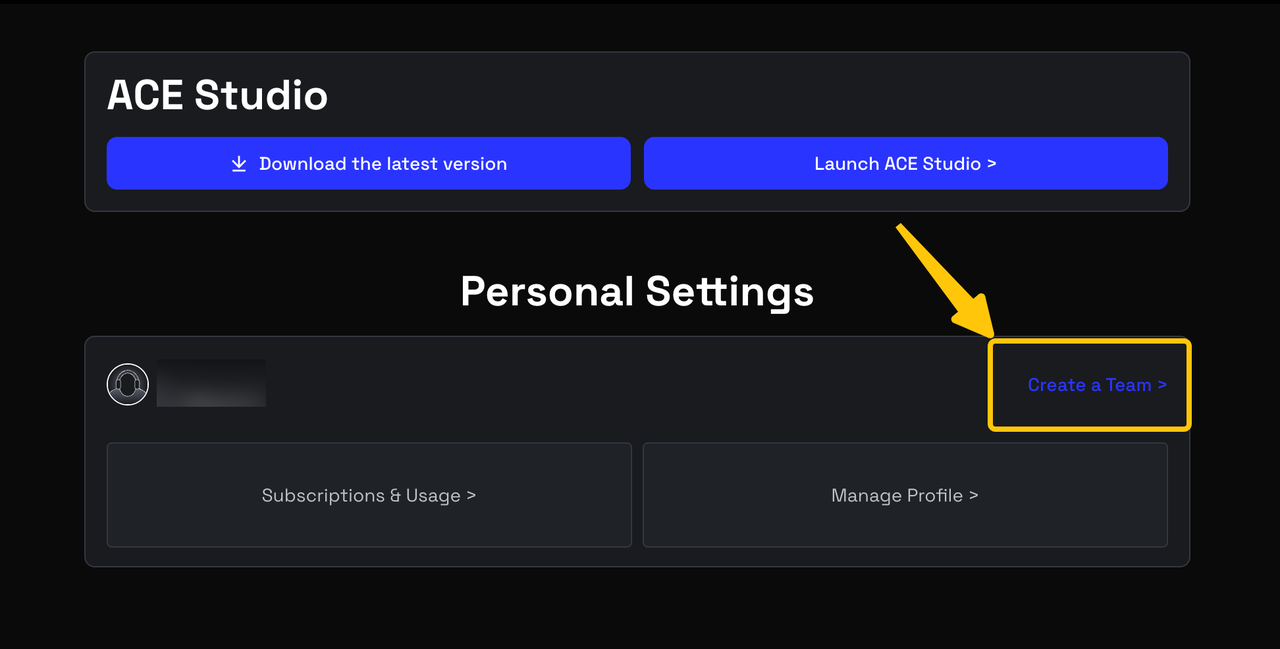
1. Go to the Subscription page under your personal identity and click Explore Team Plan. You can also start by clicking Create a Team on your personal Account Center page.
2. Select your plan (Artist Team or Artist Pro Team), billing cycle (Monthly or Yearly), and number of seats, then click Select Plan.
3. Enter a team name to create a new team, or select an existing team that has no active subscription and no other members besides you. Then click Continue to proceed to payment.
4. After payment is completed, your identity will automatically switch to the new team, and you (as the owner) will automatically occupy one seat.
Available plans:
• Artist Team — $29/seat monthly, $199/seat yearly
• Artist Pro Team — $38.50/seat monthly, $264/seat yearly
• The minimum number of seats is 3.
• The maximum number of seats is 300.
Note: Team Plan is available as a monthly or yearly subscription only. Lifetime Licenses and Rent-to-Own are not available for Team Plan.
Adding Members to Your Team
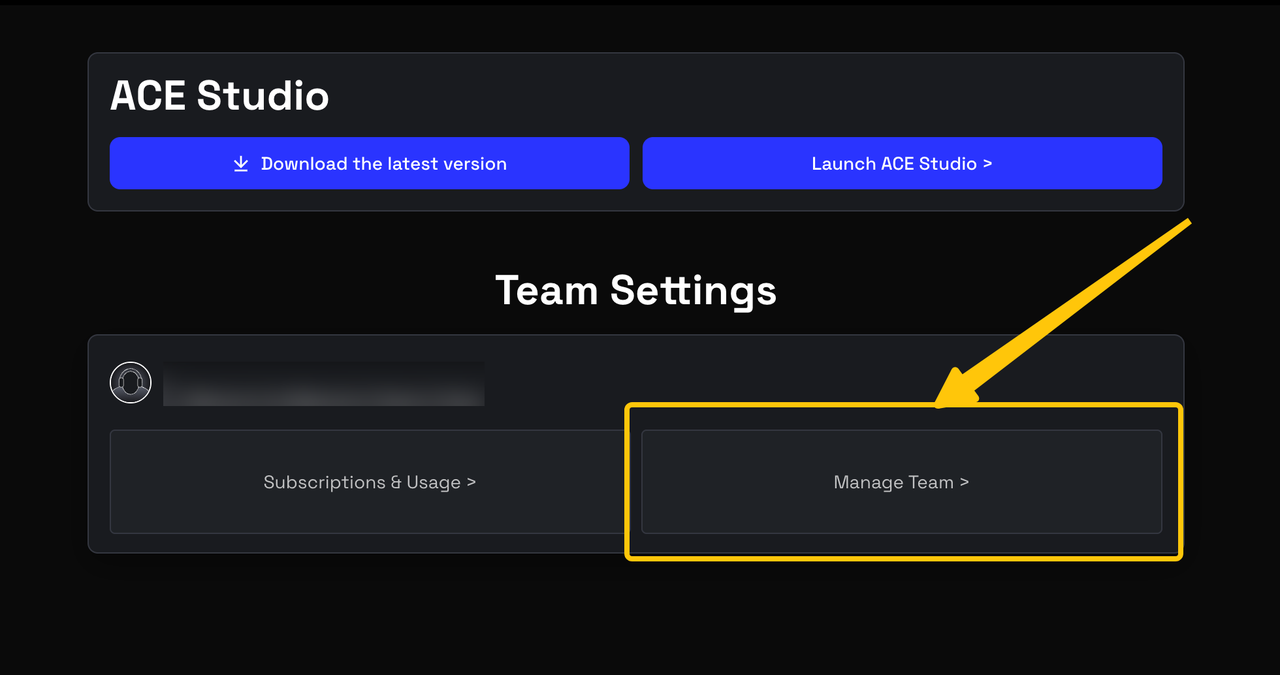
1. Go to Manage Team in your Account Center. (Note that you need to use the team owner's identity here.)
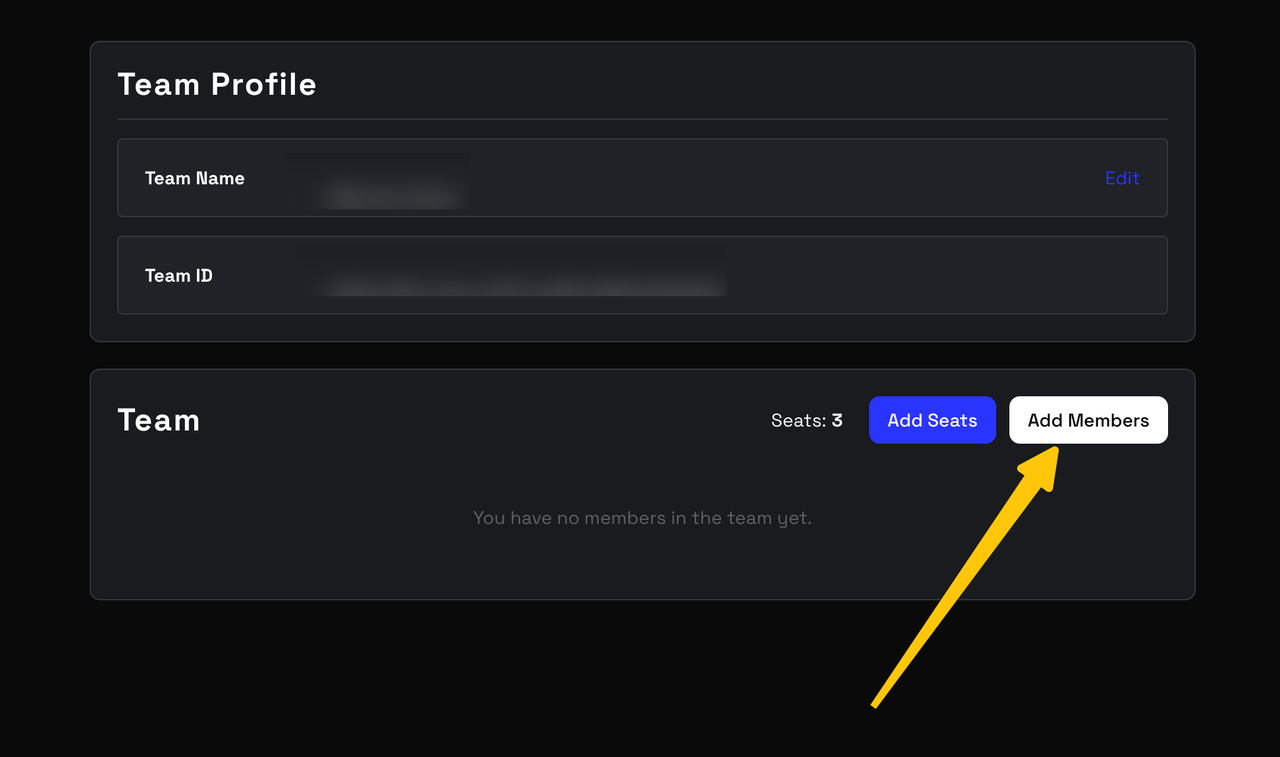
2. Click Add Members.
3. Enter the email address or UID of the person you want to add.
4. The invitation takes effect immediately — the member will be added to a seat right away (no confirmation needed from their side).
5. The new member will receive an email notification letting them know they have been added.
Note: If the email address you enter is linked to multiple ACE Studio accounts, you will be asked to enter the member's UID instead to avoid ambiguity. (How to find the UID?)
Note: If the email address you enter is not associated with any ACE Studio account, a prompt will appear letting you know the user has not registered yet. The person will need to create an ACE Studio account first before they can be added to your team.
Switching Between Personal and Team Identities
Once you have a team (either as an owner or a member), you will have two identities in ACE Studio:
• Personal — your individual account, with its own subscription, credits, and assets.
• Team — your team identity, with the team's subscription benefits, credits, and assets.
How to Switch
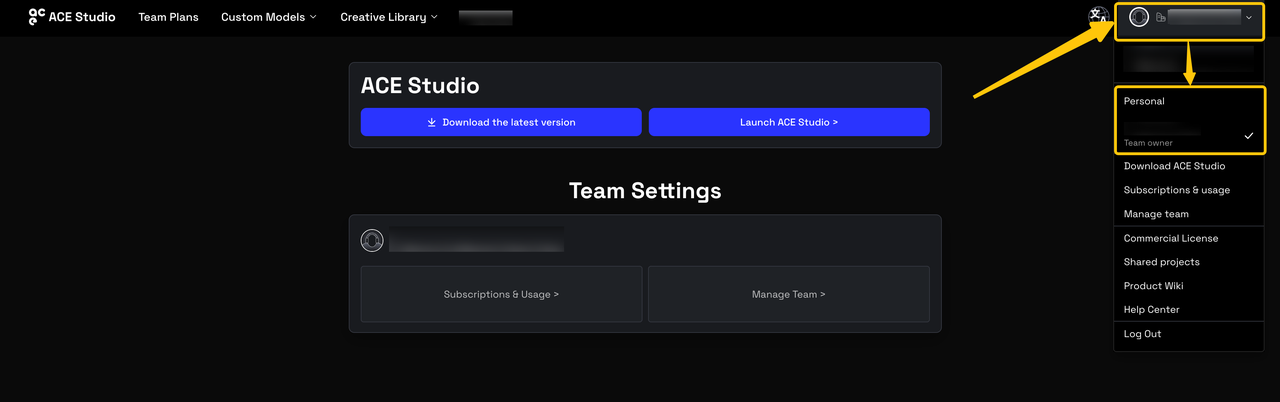
• On the website: Click your profile icon in the top-right corner. You will see an identity switcher that lets you toggle between Personal and your team(s).
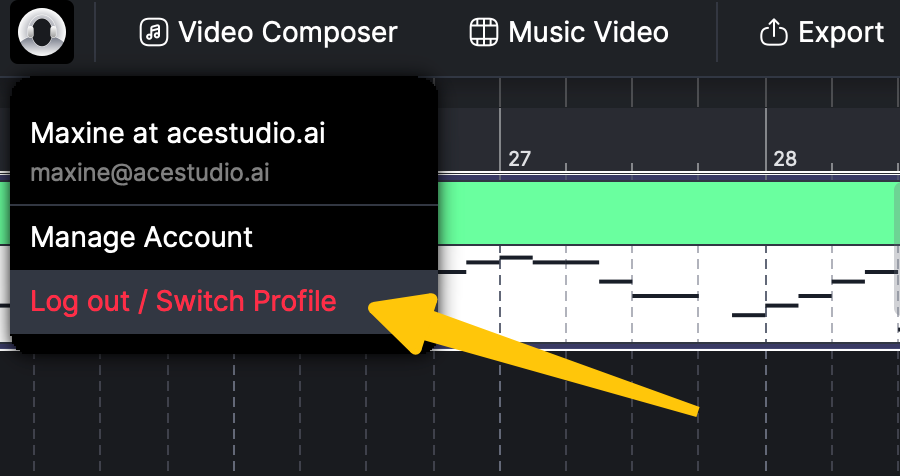
• On the desktop app: Click the profile icon in the top menu bar, then click Log out / Switch Profile.
What Changes When You Switch?
When you switch identities, the following will change to reflect the selected identity:
• Your displayed subscription plan
• Your available AI Credits balance
• Your Custom Voice slots and trained voices
Personal Identity vs. Team Identity
Your personal identity and team identity are completely separate. They do not share assets, credits, or subscription benefits. Here is what that means in practice:
AI Credits
• Credits under your personal identity and credits under your team identity are independent.
• Using credits in one identity does not affect the balance in the other.
Custom Voices
• Custom Voices trained under your personal identity are not visible or accessible under your team identity, and vice versa.
• Each identity has its own set of Custom Voice training slots.
Subscription
• Your personal subscription and your team subscription are independent plans.
• Having an active personal subscription does not affect your team subscription, and having a team subscription does not affect your personal one.
• Both can be active at the same time — you simply choose which identity to use when working in ACE Studio.
Managing Your Team
Who Can Manage the Team?
Only the team owner can:
• Change the team name
• Add or remove members
• Change the subscription plan (upgrade, downgrade, or add seats)
• Cancel the team subscription
Team members can view the team's subscription information but cannot make any changes.
Removing a Member
1. Go to Manage Team.
2. Click Remove next to the member you want to remove.
3. Confirm the removal.
The removed member will receive an email notification. Their personal account remains active and unaffected.
Changing Plans or Seats
From the Team Plans page, you can:
• Upgrade from Artist Team to Artist Pro Team
• Downgrade from Artist Pro Team to Artist Team
• Add or reduce seats on your current plan
When reducing seats, the minimum number of seats cannot go below the number of currently occupied seats. For example, if 8 seats are assigned to members, you cannot reduce the seat count below 8.
Canceling or Leaving a Team
Canceling a Team Subscription (Owner)
• Cancellation is scheduled, not immediate. Your team's subscription remains active until the end of the current billing period.
• After cancellation takes effect, team members will lose their subscription benefits.
• Custom Voices trained under the team identity will be locked until the subscription is renewed.
• You can undo the cancellation at any time before it takes effect by clicking "Do not cancel" on the Subscription page.
Leaving a Team (Member)
• If you are removed from a team by the owner, you will receive an email notification.
• Your personal account and personal subscription remain completely unaffected.
• Any Custom Voices trained under your team identity will no longer be accessible to you.
Frequently Asked Questions
I already have a personal subscription. What happens if I also join a team with a Team Plan?
Nothing changes with your personal subscription. Your personal plan and your team plan are completely independent. You will have two identities — Personal and Team — each with their own subscription benefits, AI Credits, and Custom Voice slots. You can switch between them at any time.
Is Rent-to-Own available for Team Plan?
No. Team Plan only supports monthly and yearly subscriptions. Rent-to-Own and Lifetime License options are not available for Team Plan.
Can I create or join multiple teams?
Yes. You can create multiple teams and join multiple teams. Your personal identity is always retained alongside all of your team identities.
I trained a Custom Voice on my personal account. Can I use it under my team identity?
No. Custom Voices are tied to the identity under which they were trained. Voices trained under your personal identity are not accessible under your team identity, and vice versa.
Are AI Credits shared between my personal and team identities?
No. AI Credits are tracked separately for each identity. Using credits under one identity does not affect the other.
What happens to my trained Custom Voices if the team subscription expires?
Your Custom Voice training slots under the team identity will be locked. The trained voices are not deleted, but you will not be able to use or manage them until the team subscription is renewed or upgraded.
Does the team owner automatically get the team's subscription benefits?
Yes. When you create a team, you automatically occupy one seat and receive the team's subscription benefits. If you'd like to free up your seat for someone else, you can remove yourself from the seat in the Manage Team page at any time. After removing yourself, you will no longer have the team's subscription benefits until you re-add yourself to a seat.